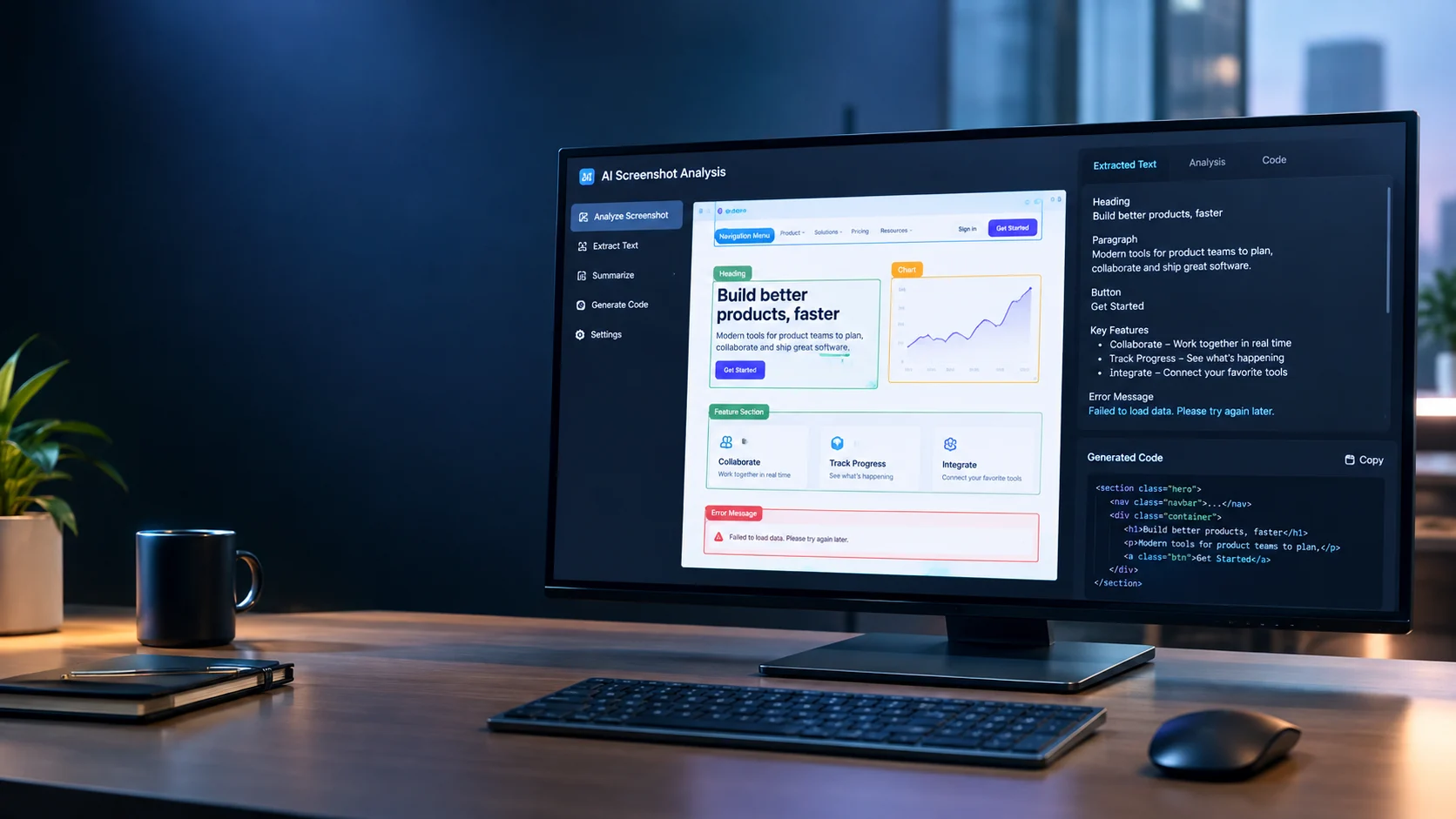
An AI screenshot tool uses artificial intelligence to interpret screenshots, extract text, explain visual information, identify interface elements, or convert designs into editable code. The right tool depends on whether you want to understand an image, recover text, troubleshoot an error, improve a design, or turn a visual reference into a working interface.
AI Screenshot at a Glance
- Understand images: Ask AI to explain screenshots, diagrams, charts, and application interfaces.
- Extract text: Use optical character recognition (OCR) to turn visible text into editable content.
- Solve problems: Analyze software errors, confusing settings, and interface messages.
- Build interfaces: Convert website mockups and screenshots into an initial version of frontend code.
- Improve productivity: Summarize visual information and organize findings into useful notes.
- Protect sensitive information: Remove passwords, account details, personal information, and confidential data before uploading screenshots.
What Is an AI Screenshot?
An AI screenshot is a screenshot that a person captures, uploads, generates, or processes using artificial intelligence. The phrase commonly refers to tools that understand screenshots and produce useful results from their visual content.
Traditional screenshot software captures what appears on a screen. An AI screenshot tool goes further by interpreting the image, extracting information, answering questions, or generating a new output.
For example, imagine taking a screenshot of an error message in a software application. Instead of searching the entire internet for the exact message, you can upload the image to an AI assistant and ask what the error means and how to investigate it.
Depending on the tool, AI can help with:
- Reading text from screenshots.
- Explaining charts, diagrams, and tables.
- Identifying visible buttons, menus, and interface components.
- Summarizing conversations or documents.
- Suggesting improvements to website layouts.
- Converting visual designs into HTML, CSS, or frontend components.
Important distinction: AI screenshot analysis, screenshot capture, screenshot generation, and screenshot-to-code conversion are different tasks. A tool that performs one function may not support the others.
How Does AI Screenshot Technology Work?
AI screenshot tools generally combine image processing, computer vision, and machine learning. More advanced systems use multimodal large language models (LLMs), which process both visual information and natural-language instructions.
The exact workflow depends on the product and the task.
1. Capture or upload the screenshot
Start by capturing the relevant screen or uploading an existing image. Common formats include PNG and JPEG, although supported formats vary by tool.
A clear, focused screenshot usually produces more useful results than a blurry image containing several unrelated windows.
2. Process the visual information
The system analyzes visual features such as text, shapes, spacing, objects, and relationships between interface elements.
Some tools use OCR to recognize characters. Others rely on multimodal models to interpret both text and the broader visual context.
OCR is particularly useful when the goal is to recover written content. Multimodal reasoning can help explain how the visible elements relate to one another.
3. Interpret the user’s instructions
The AI combines the screenshot with the question or task you provide.
For example, asking “What is shown here?” invites a broad description. Asking “Identify the error message, explain its likely causes, and suggest three troubleshooting steps” provides a much clearer objective.
4. Generate the result
Depending on the application, the output may be extracted text, a summary, an explanation, a list of design issues, or generated code.
Some products also support follow-up questions, allowing you to refine the result without uploading the same screenshot again.
5. Verify the output
AI interpretation is not always correct. Text may be misread, numbers may be transcribed incorrectly, and visual patterns may be misunderstood.
Always compare important findings against the original screenshot, especially when working with financial information, technical errors, or business-critical decisions.
What Can You Do With an AI Screenshot Tool?
AI screenshot tools are useful across several everyday and professional workflows.
Analyze screenshots and understand images
Upload a screenshot and ask the AI to describe its contents or answer a specific question.
Possible applications include understanding software interfaces, interpreting presentation slides, examining website layouts, and identifying important information in visual documents.
ChatGPT supports image inputs for tasks such as analyzing documents, interpreting visual content, and answering questions about uploaded images. Its image-input documentation also explains limitations involving unclear images, small text, and certain visual elements. <a href=”https://help.openai.com/en/articles/8400551-chatgpt-image-inputs-faq”>Read the official image-input guidance.</a>
Extract text from screenshots
An AI screenshot reader can help turn image-based text into editable content.
Common use cases include:
- Copying text from an image that cannot be selected.
- Extracting headings from presentation slides.
- Recovering code snippets from screenshots.
- Converting visible lists into structured notes.
- Transcribing text from application interfaces.
For best results, use a sharp image with readable text. Review punctuation, special characters, numbers, and formatting after extraction.
Troubleshoot software errors
Screenshots often contain useful debugging clues, including error codes, warning messages, application names, and configuration details.
An AI assistant can explain what a message may indicate and recommend a troubleshooting sequence.
However, the screenshot rarely provides the full technical context. The AI may need your operating system, software version, recent changes, or relevant logs to narrow down the cause.
Never assume that a suggested fix is safe simply because the explanation sounds convincing.
Convert screenshots into code
Screenshot-to-code tools attempt to reproduce a website or application interface from a visual reference.
They may generate HTML, CSS, React components, or other supported frontend outputs. This can help developers build prototypes, explore design ideas, or establish a starting point for a redesign.
The open-source Screenshot to Code project documents support for several frontend stacks and provides a codebase that developers can inspect and run themselves. Its current implementation and requirements should be checked before choosing a particular workflow.
Generated code still needs review. A screenshot does not reveal the original database, backend logic, authentication rules, responsive behavior, or complete application architecture.
Review website and UI designs
Designers can use AI screenshot analysis to identify potential problems in a landing page, dashboard, mobile interface, or checkout screen.
Useful questions include:
- Is the primary call to action visually prominent?
- Are the headings easy to scan?
- Which elements appear inconsistent?
- Does the layout seem crowded on mobile?
- What accessibility issues should a human reviewer investigate?
Treat these observations as suggestions rather than a complete usability or accessibility audit. AI cannot reliably establish how every real user will experience an interface from a static image alone.
Summarize visual information
Screenshots can contain dense information that takes time to read. AI can summarize the main points, group related items, and convert visible content into an outline or action list.
This is particularly useful for meeting notes, educational material, dashboards, and reference images.
If the screenshot contains exact figures or important contractual language, verify the extracted details before relying on the summary.
Best AI Screenshot Tools: A Practical Comparison
There is no single tool for every screenshot task. Choose according to the result you need, the type of input you have, and the level of control you require.
| Tool | Best suited for | Key capability | Important consideration |
|---|---|---|---|
| ChatGPT | General users, professionals, and students | Ask questions about uploaded screenshots and visual documents | Image interpretation can be inaccurate; limits depend on the account and feature |
| Google Gemini | Users working with images and other files | Upload supported files and ask questions about their contents | Usage limits, supported inputs, and available features depend on the account and plan |
| Screenshot to Code | Developers and product designers | Generate frontend code from visual references | Generated code requires testing and implementation review |
| Dedicated OCR tools | Users who primarily need text extraction | Convert image text into editable content | Complex layouts and unclear text may require manual correction |
ChatGPT’s image-input documentation describes supported image uploads and known limitations. Google also documents image and file analysis in Gemini Apps, including upload limits and account-dependent availability. <a href=”https://support.google.com/gemini/answer/14903178″>See Google’s official upload and analysis guide.</a>
Screenshot to Code is a separate category of tool focused on interface generation rather than general image question-answering. Its capabilities depend on the version, model configuration, and deployment method.
Pricing transparency: These products use different access models, and availability can change. Check each official pricing page before subscribing. A free plan, where available, may still include usage limits, restricted features, or separate API costs.
How to Analyze a Screenshot With AI
You do not need advanced technical knowledge to get started. A focused question and a readable image can make the process more effective.
Step 1: Choose the right tool
Select a general-purpose AI assistant for explanations and summaries. Choose OCR software for straightforward text extraction, or screenshot-to-code software when you need an editable interface.
Step 2: Prepare the image
Capture the relevant section at a readable resolution. Remove unrelated content and crop away unnecessary browser tabs or desktop elements.
Before uploading, hide passwords, private messages, account identifiers, customer records, and other sensitive information.
Step 3: Write a specific prompt
Explain what you want the AI to identify or produce.
For example, instead of writing “Analyze this screenshot,” ask it to extract the visible error message, explain what it might mean, and list the information needed to diagnose the problem.
Step 4: Review the answer
Check extracted text, numerical values, labels, and technical recommendations against the image.
If the response misses important information, provide additional context or upload a clearer crop.
Step 5: Request a structured output
Ask for a table, checklist, summary, or step-by-step explanation when that format makes the result easier to use.
For recurring work, keep a consistent prompt and review process so you can compare results across screenshots.
AI Screenshot Prompts You Can Copy
The following prompts provide a useful starting point for common tasks.
For text extraction
“Extract all readable text from this screenshot. Preserve headings, bullet points, line breaks, and numerical values. Mark unclear text instead of guessing.”
For error analysis
“Read the error message in this screenshot. Explain its likely meaning, distinguish confirmed information from possible causes, and suggest safe troubleshooting steps. Tell me what additional context you need.”
For website design review
“Review this website screenshot for visual hierarchy, spacing, readability, navigation, and mobile usability. Identify the five most important potential improvements and explain why each one matters.”
For screenshot-to-code development
“Recreate the visible interface as a responsive frontend prototype. Identify the main components, describe any assumptions, and use accessible HTML and CSS. Do not invent backend functionality that is not shown in the screenshot.”
For dashboard analysis
“Summarize the visible dashboard. Extract the key metrics and trends, flag any unclear labels, and distinguish observations from conclusions that cannot be established from this image alone.”
These prompts work best when adapted to the actual task. No prompt can guarantee perfect recognition or correct reasoning.
Benefits of AI Screenshot Tools
Faster information retrieval
AI can help users locate relevant text or understand a visual message without manually transcribing every detail.
Reduced repetitive work
Extracting text, creating summaries, and organizing screenshot content can become faster when the image is clear and the output is easy to verify.
More accessible technical explanations
A user who does not understand a software error or unfamiliar interface can ask follow-up questions in everyday language.
Faster prototyping
Developers can use screenshot-to-code workflows to create a preliminary interface before refining the code and integrating application logic.
More flexible workflows
Some AI assistants can work with screenshots alongside documents, spreadsheets, and other supported files. This can help users connect visual evidence with additional context.
Actual time savings depend on image quality, task complexity, model performance, and the amount of manual correction required.
Limitations and Common Mistakes
AI screenshot technology can be useful, but it has several practical limitations.
Assuming the AI reads every detail correctly
Small fonts, low contrast, rotated text, compressed images, and complicated charts can reduce accuracy. Important information may be overlooked even when the overall summary seems reasonable.
Solution: Enlarge difficult sections, use a sharper capture, and verify critical details manually.
Asking vague questions
A broad prompt can produce a broad answer that does not address your real problem.
Solution: State the desired output, the relevant area, and any constraints.
Treating generated code as production-ready
A visual match does not prove that the code is secure, accessible, responsive, maintainable, or functionally complete.
Solution: Test the result, review the code, and integrate it with the actual application architecture.
Ignoring privacy and data retention
Uploading a screenshot may disclose information that was not intended for an external service.
Solution: Redact sensitive content and review the provider’s data-handling policy before uploading confidential material.
Trusting unsupported conclusions
A screenshot provides only a partial view of a system. The AI cannot reliably infer hidden processes, missing data, or events that are not visible.
Solution: Ask the tool to distinguish visible evidence from assumptions and request additional information where necessary.
Privacy and Security What Should You Check?
Screenshot privacy matters because images can expose more information than users realize.
A screenshot might include email addresses, browser tabs, internal URLs, API keys, customer information, payment details, or private conversations. Even a cropped image can reveal confidential business information.
Before using an AI screenshot tool, review these safeguards:
- Data collection: Determine what information the provider collects when you upload an image.
- Retention: Check whether uploaded images and generated responses are stored, and for how long.
- Model training: Review whether submitted content may be used to improve models and what controls are available.
- Access controls: For workplace tools, check user permissions and administrative settings.
- Enterprise requirements: Confirm whether the service meets your organization’s contractual, regulatory, and data-location requirements.
- Local processing: If sensitive information must not leave your environment, investigate whether a suitable local or self-hosted workflow is available.
Do not assume that a provider’s general security certifications automatically guarantee zero data retention. Those are separate questions that require separate evidence.
For example, OpenAI’s image-input guidance directs users to its broader data-use policies for information about how submitted content may be handled. Organizations should review the terms and controls that apply to their specific product and account.
Who Should Use an AI Screenshot Tool?
AI screenshot tools can help different groups, but the right workflow depends on their objectives.
| User | Recommended workflow | Primary benefit |
|---|---|---|
| Students | Extract text and explain diagrams or screenshots | Easier study and note preparation |
| Office professionals | Summarize slides, tables, and application messages | Faster information handling |
| Developers | Interpret errors and convert interface references into code | Faster investigation and prototyping |
| UI/UX designers | Review layouts and explore design alternatives | Additional design feedback |
| Content creators | Extract text and organize visual references | Less repetitive transcription |
| Businesses | Process approved screenshots for documentation and support | More structured workflows |
Users handling regulated, confidential, or high-risk information should prioritize privacy controls and human verification over convenience.
FAQs
1. What is the best AI screenshot tool?
The right tool depends on your task. ChatGPT and Google Gemini support questions about uploaded images, while Screenshot to Code focuses on converting visual references into frontend code. Compare supported inputs, output quality, privacy terms, usage limits, and cost before choosing.
2. Can AI read text from a screenshot?
Yes. AI assistants and OCR tools can extract readable text from many screenshots. Accuracy depends on image quality, font size, contrast, language, and layout, so important text should be checked against the original image.
3. Can I analyze a screenshot with AI for free?
Some AI services and OCR tools offer free access, but availability and usage limits vary. Check the provider’s current plan details, upload restrictions, and feature availability before relying on free access for regular work.
4. Can AI convert a screenshot into HTML or React code?
Yes. Screenshot-to-code tools can generate an initial frontend implementation from a screenshot or design reference. Developers still need to review the code, improve responsiveness and accessibility, and implement any missing application logic.
5. Is it safe to upload screenshots to AI tools?
It depends on the information in the screenshot and the provider’s data-handling practices. Remove sensitive details before uploading, review retention and model-training policies, and use an approved environment for confidential information.
Conclusion
AI screenshot tools turn static images into information people can analyze, reuse, and act on. They can extract text, explain visual content, help investigate software errors, review designs, and generate frontend code.
The most important decision is choosing a tool that matches your task. General-purpose AI assistants suit visual questions, OCR tools focus on text extraction, and screenshot-to-code platforms support interface prototyping.
For reliable results, use clear images, provide specific instructions, verify important outputs, and protect sensitive information. Treat AI-generated interpretations and code as starting points that require appropriate human review.