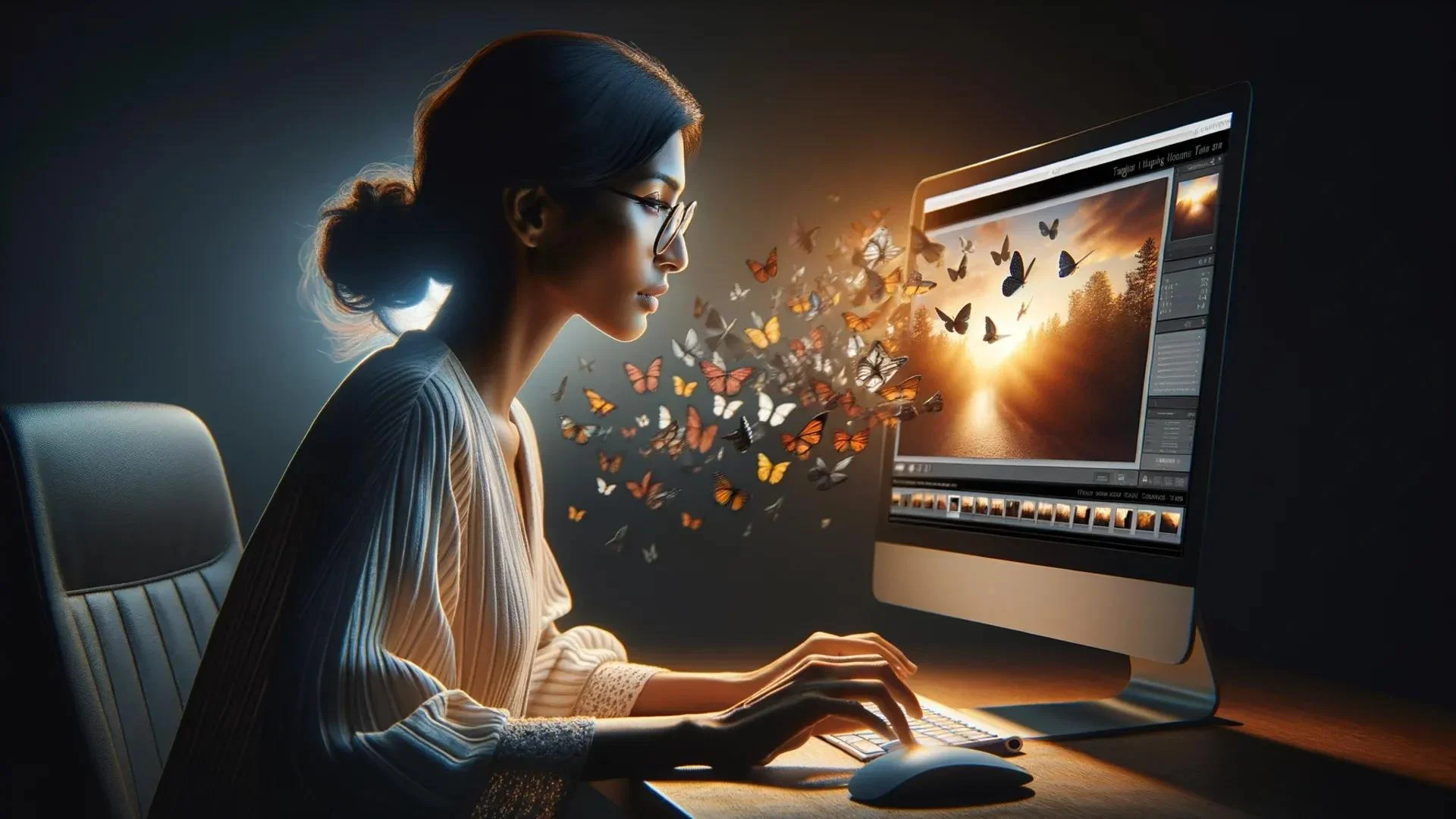
AI GIFs are animated images created with artificial intelligence from text prompts, still images, or existing video clips. You can make them using an AI GIF generator, refine the motion and timing, and export the result as a GIF or a video file, depending on the tool.
AI GIFs at a glance

What they are
AI-generated animations designed for messaging, memes, marketing, and creative projects.

How they are made
Generate motion from a text prompt, animate an existing image, or convert a video into a looping GIF.

Who can use them
Social media creators, marketers, designers, bloggers, businesses, and everyday users.

Where they work
Messaging apps, websites, presentations, online communities, and compatible social platforms.

What to check
Actual GIF export, image quality, file size, watermarks, usage limits, and commercial rights.
What Are AI GIFs?
AI GIFs are short animations created or enhanced using artificial intelligence. They combine the familiar looping behavior of an animated GIF with AI-generated imagery or motion.
Traditional GIF creation usually involves selecting video footage, arranging images, editing frames, or adding effects manually. AI-assisted creation can simplify these steps by generating new visual content or animating an existing picture.
For example, you could upload a photo of a dog and ask an AI tool to make the dog wag its tail. Alternatively, you could describe a cartoon astronaut dancing on the moon and generate an original animated scene.
The resulting animation can be used as a reaction GIF, social media asset, website illustration, promotional visual, or messaging sticker.
How are AI GIFs different from regular GIFs?
The primary difference is how the animation is created, not necessarily the file format.
| Feature | Traditional GIF | AI GIF |
|---|---|---|
| Creation method | Existing footage, images, or manually designed frames | AI-generated content, AI-assisted animation, or conventional editing |
| Source material | Usually existing visual assets | Text prompts, images, or video |
| Creative control | Direct control over editing and frames | Depends on the AI model and editing tools |
| Editing requirements | May require manual editing | AI can automate parts of the process |
| Output format | GIF | GIF, MP4, WebM, or another supported format |
| Common uses | Memes, reactions, simple animations | Custom reactions, animated characters, branded content, and creative experiments |
Not every animation made with AI is an actual GIF file. Some tools generate a short video that must be converted before it can be shared as a .gif.
That distinction matters when a website, messaging app, or content management system requires a specific file format.
How Do AI GIF Generators Work?
AI GIF generators use different workflows depending on their underlying technology. Some generate images and animate them, while others create motion directly from text or transform existing video footage.
1. Text-to-GIF generation
Text-to-GIF tools turn written descriptions into animated visual content, either directly or through a video-generation step.
You enter a prompt describing the subject, action, visual style, and background. The system generates an animation that can then be exported or converted into a GIF.
Example prompt:
A cheerful cartoon robot waves at the viewer, colorful studio background, smooth motion, fixed camera, short seamless loop, clean 3D animation.
This approach works well for original characters, reaction animations, playful illustrations, and imaginative scenes.
2. Image-to-GIF animation
Image-to-GIF workflows begin with an existing photograph, illustration, product image, or character design.
An AI animation model estimates how the scene could move and generates new frames or a short video. The result can then be edited and exported in a supported format.
Useful applications include:
- Animating a product photograph for an advertisement.
- Adding subtle movement to digital artwork.
- Creating expressive character reactions.
- Turning a still illustration into a short visual story.
For better consistency, start with a clear image, a distinct subject, and a simple motion request.
3. Video-to-GIF conversion
This method uses an existing video rather than generating new motion from scratch.
You select a suitable clip, trim the important moment, adjust its dimensions, and export the result as a GIF. AI may help with editing or content generation, but the conversion itself does not necessarily require AI.
For example, Adobe Express provides a video-to-GIF workflow, while GIPHY offers tools for creating GIFs from supported media.
Choose this approach when you already have footage and want to create a short reaction, tutorial, or promotional loop.
How to Create AI GIFs Step by Step
You do not need advanced animation skills to begin. The main tasks are choosing the right workflow, describing the desired movement, and checking the final export.

Step 1: Choose an AI GIF generator
Select a tool that supports your starting material. If you want an original animation, look for text-to-animation or image-to-animation features. If you already have a clip, a GIF editor may be sufficient.

Step 2: Write a clear prompt or upload an image
Describe one main subject and one action. If you use an image, make sure the subject is easy to identify and the source file is suitable for your intended use.

Step 3: Generate the animation
Select the available animation settings and generate a preview. If the movement looks unnatural, simplify the action or adjust the prompt.

Step 4: Edit and refine the loop
Trim unnecessary frames, check the beginning and end, and adjust the playback speed. Add captions only when they improve the message.

Step 5: Export and test
Download an actual GIF if you need a .gif file. Preview it in a browser or the target platform to confirm that the animation loops correctly and the file displays as intended.
What makes a good AI GIF prompt?
A strong prompt defines four things: the subject, the action, the visual style, and the camera behavior.
Use this simple structure:
Subject + action + style + background + camera movement + loop behavior.
For instance, “A small golden retriever wearing sunglasses nods happily, polished 3D cartoon style, plain pastel background, fixed camera, smooth repeating motion.”
Avoid describing several unrelated actions in one prompt. Complex instructions can make movement less predictable and introduce visual inconsistencies.
If the generator supports negative prompts or additional constraints, use them to discourage unwanted camera movement, flickering, extra limbs, or changes in the subject’s appearance.
Best AI GIF Generators and Tools to Consider
The right tool depends on whether you want AI-generated motion, conventional GIF editing, or a combination of both.
The following comparison focuses on established creation workflows rather than claiming that every platform generates GIFs directly.

Adobe Express
Best suited to: editing and conversion
Adobe Express offers tools for turning videos and images into GIFs, trimming clips, and adding visual elements. Its documented export options include quality settings for GIF output.
Adobe Express
Explore Adobe Express

GIPHY
Best suited to: reactions and sharing
GIPHY’s creation tools support media uploads, captions, stickers, cropping, and GIF publishing. This is useful for users who want to make and share expressive content.
Explore GIPHY Create

GifGen
Best suited to: AI-generated GIFs
GifGen describes a workflow that turns an image or idea into an animated GIF, with controls for motion and frame output. Its website advertises a free starting allowance of 30 credits; verify current terms before relying on that allowance.
Explore GifGen
Tool comparison at a glance
| Tool | Main use | Actual GIF workflow | Pricing transparency |
|---|---|---|---|
| Adobe Express | Editing and conversion | Direct GIF export is documented | Free entry option; check current plan details |
| GIPHY | Reactions and publishing | GIF creation and upload | Creation workflow is available; check current account requirements |
| GifGen | AI-generated animations | Direct animated GIF workflow described by the provider | Advertises 30 free starting credits; check current limits |
Important: Features, allowances, and commercial terms can change. The table reflects the cited product information, not a controlled performance test or a guarantee that every feature is available on every plan.
Before committing to an AI GIF maker, check whether its free tier includes downloads, whether exports carry watermarks, how credits are consumed, and whether commercial use is permitted.
Popular Types of AI GIFs You Can Create
AI GIFs are useful across different creative and professional settings. The best style depends on the audience, message, and platform.

1. AI reaction GIFs
Create funny facial expressions, virtual high-fives, surprised characters, and celebratory reactions for conversations and online communities.

2. Marketing and product GIFs
Animate product details, demonstrate simple features, or highlight a promotion. Keep branding readable and check that generated product details match the real item.

3. Artistic and fantasy GIFs
Generate atmospheric landscapes, magical effects, abstract patterns, and imaginative characters for creative projects.

4. Website and interface animations
Create subtle visual accents, demonstration loops, or decorative motion. For functional interface elements, predictable timing and lightweight files matter more than visual complexity.

5. Educational GIFs
Show a simple process, demonstrate a movement, or illustrate a concept in a repeating visual sequence. Review generated details for accuracy before using them to teach.
Best Practices for Creating High-Quality AI GIFs
Generating an animation is only the beginning. Good editing, sensible export settings, and a clear visual purpose make the result more useful.
Keep the animation short and focused
A GIF should communicate one idea quickly. A simple wave, product rotation, or reaction is often easier to understand than a complicated sequence.
Short clips also tend to be easier to optimize for web use. The appropriate duration depends on the action and where you intend to publish it.
Make the loop feel natural
A visible jump between the final frame and the first frame can make an animation feel unfinished.
To improve looping:
- Use a motion that can repeat naturally.
- Keep the camera stationary when possible.
- Match the final pose to the opening pose.
- Preview the transition several times.
- Use a boomerang effect when it suits the action.
Not every animation needs to loop seamlessly. A repeating product demonstration and a humorous reaction may have different timing requirements.
Optimize file size without sacrificing clarity
The GIF format uses a palette of up to 256 colors per frame, which can limit gradients and detailed imagery. Large dimensions, many frames, and complex movement can also increase file size.
Consider these adjustments:
- Reduce unnecessary frames.
- Crop out unused background space.
- Resize the animation to its intended display dimensions.
- Reduce excessive color variation when appropriate.
- Compare the exported file with the original animation.
For complex, photographic motion, MP4 or WebM may offer a better balance of quality and file size. However, browser autoplay rules, transparency requirements, and platform compatibility can affect the choice.
Check accessibility and mobile usability
Do not rely on motion alone to communicate essential information. Add a short caption or explanatory text when necessary.
Avoid rapid flashing, particularly when publishing animations to broad audiences. For websites, consider reduced-motion preferences and provide an alternative for essential animated content.
Benefits and Limitations of AI GIFs
AI GIF generators can reduce the manual work involved in creating custom animations. However, their results still need review.
| Benefits | Limitations |
|---|---|
| Create original visual concepts from text | Generated movement can look unnatural |
| Animate existing images | Subjects may change appearance between frames |
| Reduce manual animation work | Fine control over every frame may be limited |
| Produce customized reaction content | Free plans may impose usage limits or watermarks |
| Support rapid marketing experiments | AI-generated text and product details may be incorrect |
| Help non-designers explore animation | Conversion can reduce color quality or increase file size |
Another consideration is repeatability. If you need a character, logo, or product to look exactly the same across multiple animations, check whether the tool supports reference images, consistent character generation, or editable frames.
AI generation is most useful when creative flexibility matters more than exact frame-by-frame control. For precise branding or complex motion, a conventional animation editor may still be necessary.
Are AI GIFs Free to Create?
Some AI GIF tools offer free access, trial credits, or limited free plans. Others require payment for additional generations, higher-quality exports, or commercial features.
A free account does not necessarily mean unlimited downloads or unrestricted usage.
Before choosing a tool, check these details:
- Generation credits: How many animations can you create?
- Credit expiry: Do unused credits expire?
- Export restrictions: Can you download a GIF, or only a video preview?
- Watermarks: Does the free version add a logo?
- Resolution and duration: Are longer or higher-quality animations restricted?
- Commercial rights: Can you use the output in advertising or client work?
- Privacy: Are uploaded images stored, reused, or retained after processing?
These details are particularly important for businesses producing GIFs at scale. A tool with inexpensive generation may still become costly if it requires a separate paid conversion service or limits the number of usable exports.
Privacy, Copyright, and Commercial Use
AI GIF creation often involves uploading photographs, product images, logos, or other visual material to an external service. Review the provider’s privacy policy before submitting sensitive or confidential files.
For business use, consider the following safeguards:
- Obtain permission before animating another person’s private photographs.
- Use visual assets you own or have permission to modify.
- Review the tool’s terms for commercial use and ownership rights.
- Avoid misleading animations that misrepresent real people, products, or events.
- Check whether the provider retains uploaded images or uses them to improve its services.
- Keep original files and document relevant licenses when creating assets for clients.
AI-generated output is not automatically free from copyright, trademark, publicity-right, or other legal concerns. Applicable rules depend on the jurisdiction, the source material, and the intended use.
For confidential company assets, also examine access controls, data retention, and any available enterprise privacy commitments. Do not assume that a vendor’s general security statements guarantee that uploaded files are never retained.
How to Choose the Right AI GIF Tool
The best choice depends on what you need to produce, not simply whether a tool advertises AI.
Use this checklist before selecting a platform:
- Choose a text-to-animation workflow when you want an original scene.
- Choose image-to-animation when you want to bring an existing visual to life.
- Choose a GIF editor when you already have footage and need trimming or conversion.
- Choose a professional animation workflow when precise branding or repeatable motion is essential.
- Verify that the final export meets your platform’s format, dimensions, and size requirements.
- Test the free tier with a real project before purchasing a subscription.
For an occasional personal GIF, a simple editor may be enough. For frequent creative production, compare generation limits, export quality, licensing terms, and the time required to correct results.
FAQs
1. What are AI GIFs?
AI GIFs are animated visuals created or enhanced with artificial intelligence. They can be generated from text prompts, animated from existing images, or produced by converting video clips into looping GIF files.
2. How can I create AI GIFs for free?
Choose a tool with a free plan or trial credits, then generate an animation from text or an image. Check whether the free version allows GIF downloads, since some tools restrict exports, add watermarks, or require credits.
3. Which AI GIF generator should I use?
Choose based on your workflow. GifGen describes direct AI GIF generation, Adobe Express supports GIF editing and conversion, and GIPHY provides tools for creating and sharing GIFs from supported media. Compare current export options and usage terms before deciding.
4. Can I turn a photo into an AI GIF?
Yes. Use an image-to-animation tool to generate movement from a still photograph, then export the animation as a GIF if the tool supports that format. A separate conversion step may be necessary when the output is an MP4 or another video format.
5. Can I use AI GIFs for commercial purposes?
Potentially, but permission depends on the tool’s terms, your subscription, the source material, and applicable laws. Review commercial-use rights, copyright restrictions, and privacy requirements before using AI GIFs in advertisements, websites, or client projects.
Conclusion
AI GIFs make it easier to create custom animated visuals without building every frame manually. You can generate motion from text, animate a still image, or convert existing footage into a looping animation.
The key is choosing a tool that matches your workflow and verifying the final output. Check actual GIF export support, animation quality, file size, free plan restrictions, and commercial-use terms before publishing.
For personal reactions and creative experiments, a straightforward generator may be sufficient. For marketing and professional projects, consistent branding, privacy, licensing, and export quality deserve equal attention.